
Website Technology Issues
If you have any questions regarding accessing the site or your account, please review the questions below.
To access valuable information, UFT emails and online forms on the UFT website, you must have a UFT.org account. Start by visiting uft.org/register.
Please note: You must use a personal email (not a DOE or a school-related email address) when creating a UFT.org account.
To set up an account:
- Go to UFT.org and click Sign Up (top right corner)
- Create a New Account
- Follow the steps to create a new account - Validate your email
- Check your personal email and click the link you were sent - Log back in to UFT.org account with your username or email and password
- Click My Account (top right)
- Here you can join the union, verify your identity, join the Welfare Fund and/or order movie tickets
Not receiving UFT emails?
- Register for a UFT.org account (if you don't have one)
- Log in to the UFT website
- Go to My Account
- Click the purple "Edit" button
- Subscribe (or resubscribe) to UFT emails at the bottom of the page
*If you’re not receiving emails from UFT.org after signing up, check our FAQ.
Want to change where you receive UFT emails?
- Log in to the UFT website
- Go to My Account
- Click the purple "Edit" button above your personal details
- Update your email address and click Save
When you submit a Welfare Fund Enrollment or Change of Status Request online, we may require additional documentation, such as a copy of a birth certificate, copy of marriage certificate, etc., to complete the request. You can now upload and submit supporting documents when you complete these forms online.
This is the fastest, easiest and most secure method to submit documents. The Welfare Fund’s online application’s Confirmation/Summary page will provide a link to upload your documents.
It’s best if you already have your documents (scanned files, images, photos) saved on your computer or phone and ready for upload when you are completing the application. After scanning or photographing your documents, to upload:
- Return to UFT.org
- Log in with your UFT user name & password
- Click on My Account
- Click on the appropriate application button, either Enroll in the Welfare Fund or Change of Status Form.
When we receive your uploaded documents, we will send you an email to notify you that your upload was successful.
Watch a video demonstrating the upload process.
Follow these steps to upload documents to the Welfare Fund:
- Login at UFT.org
- Click on My Account
- Locate and click on the appropriate application button, either Enroll in the Welfare Fund or Change of Status Form
- On the Confirmation or Pending page, locate and click on the link to upload documents
- On the Upload Required Document page, select the correct person who you are submitting documents for, as well as the corresponding required document from the dropdown menus.
- Click on Choose Files, then select the file (from your saved files on your computer or phone).
- When the file displays, click on Upload Document.
When we receive your uploaded documents, we will send you an email to notify you that your upload was successful.
Scanning documents provides the highest quality images. There are several ways to scan a document for upload:
- Use a scanner, if you have access to one
- Use an application like the Adobe Scan app on your phone or mobile device, or
- Use the camera on your phone or mobile device.
Once you scan or take a picture of the document, save it on your computer or phone. If you’re taking a picture, be sure to set the document on a flat, clear surface that’s darker than the document.
Some technical guidelines & tips for documents:
- File size: 8 megabytes (MB) or smaller
- File types: GIF, JPG, PDF, PNG, or TIFF
- Documents should be clear, legible, and include the entire page (verify pages are not cut off).
- If they are multi-page documents, make sure all pages are included.
The validation email might have been flagged as spam by your email system. Check your spam folder. If you have not received it, you can request another validation email after 30 minutes.
If you have a Gmail account, here's what you can do to prevent future UFT emails from being marked as spam:
- Go to your Gmail mailbox
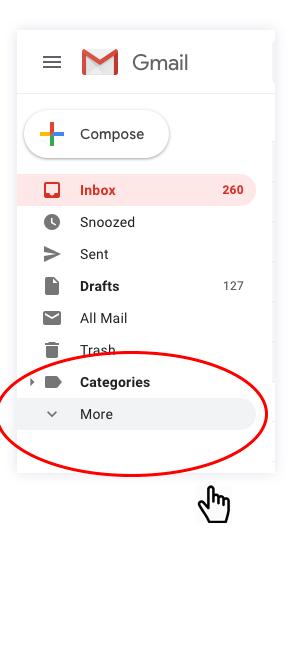
- Go to the left column where it says Inbox, Starred, Drafts, etc. and find "More" (in dropdown menu)
- Under More, they will then find the Spam folder
- Right click on any email from noreply [at] uft [dot] org (noreply[at]uft[dot]org) and mark as "Not Spam"
If you have a Yahoo email address, click on the Spam folder. Find emails from noreply [at] uft [dot] org (noreply[at]uft[dot]org) and click the "Not Spam" button. For other email providers, check their rules for unblocking or whitelisting email.
Please note: you must use a personal email address, not a work, school or DOE-related email address, on the UFT website.

All NYC Department of Education employees have access to their DOE email via the web. Please visit the DOE Login Page to log into your DOE email:
If you need assistance with your DOE email or password, please contact HR Connect at 718-935-4000.
Forgot your UFT.org password?
- Click the login link at the top of the page and click on Forgot Password. An email will be sent to you with a link.
- Login into your personal email account (i.e., Gmail, Yahoo, etc.)
- Click the link to reset your password
- If you don’t receive an email right away, you may want to check your Spam folder to reset your password. The link may need to be resent as it only lasts for 30 minutes.
You may also want to:
- Sign up again to make sure you registered with the correct email address.
Make sure you can receive UFT.org email messages. Receiving and opening an email message from UFT.org is an important part of the sign-up and password-reset processes.
If you're not receiving emails from us, it's possible that your email host is blocking UFT.org email messages or marking them as spam. Check your junk and spam mailboxes or make sure you whitelist UFT.org in your email settings. Once you have unblocked UFT.org mail, try finalizing the sign-up process or resetting your password again.
If you are having trouble logging in to the Chapter Leader hub, please call the Chapter Leader hub hotline at 212-331-6331.
Here are help pages from some popular email hosts explaining how to unblock or un-spam legitimate email messages:


If you have a Gmail account
- Go to Gmail
- Go to the left column where it says Inbox, Starred, Drafts, etc. scroll down and find "More" (in the dropdown menu)
- Under More, you'll find the Spam folder
- Right click on any "@unitedfederationofteachers.org" or "@uft.org" email address and mark as "NOT SPAM"
- Go back to UFT.org and ask for another password reset link (as they expire after 30 minutes)
Simply fill out the online form at www.uft.org/text or type the word "UFT" to number 86366.
The UFT uses text messages to convey important information and reminders to members. Please note that this is a one-way form of communication and we are unable to respond individually to texts sent in response to our messages.
To contact the UFT, call 212-331-6311.